Icon

How to Build a Clipping Agent in Overlap: A Complete Video Editing Workflow Guide

How to Build a Clipping Agent in Overlap: A Complete Video Editing Workflow Guide

Sep 14, 2024

By

Jaquory Lunsford

Learn how to build a fully automated Clipping Agent in Overlap, from account setup and node-based workflow design to AI prompting, Studio editing, and social publishing.

Posted on:

3/15/2026

Author:

Jaquory Lunsford

Share Now:
Facebook
Twitter
Linkdin

How to Build a Clipping Agent in Overlap: A Complete Video Editing Workflow Guide

Every long-form video you publish contains dozens of short-form moments worth sharing. The problem is finding them, formatting them for each platform, writing the captions, and posting them consistently, without hiring an entire production team to do it.

Overlap solves this with Clipping Agents: automated, node-based workflows that take a raw video from upload to finished, platform-ready clips without manual intervention. A Clipping Agent can watch your YouTube channel, detect the best moments using AI, resize footage for vertical or horizontal formats, add subtitles and branding, and queue posts for TikTok, Reels, and Shorts, all in one continuous pipeline.

This guide walks through every stage of building one from scratch, using Overlap's workflow builder.

What you'll be able to do by the end of this guide:

  • Understand the core architecture of a Clipping Agent (nodes, branches, triggers)

  • Build a workflow that automatically clips new YouTube uploads

  • Write an effective AI prompt that finds the right moments for your channel

  • Fine-tune clips in Overlap Studio using transcript-based editing

  • Set up a Posting Persona to automate social copy

  • Publish directly to TikTok, Instagram Reels, and YouTube Shorts

Understanding Clipping Agents: Nodes, Branches, and Triggers

Before building, it helps to understand the three structural elements that make up every Clipping Agent in Overlap. These are the building blocks everything else is assembled from.

Nodes: The Individual Steps

A node is a single action in your workflow. Each one performs a specific task: ingesting a video, scanning it for clips, adding subtitles, resizing for a platform, or posting to social media. Nodes are modular, which means you can chain them in any order and swap them out without rebuilding the whole workflow.

Overlap has three categories of nodes:

Node Type

What It Does

Examples

Trigger Node

Starts the workflow when an event occurs

New YouTube video, manual file upload, URL drop

Find Clips Node

Uses AI to scan the video and identify highlight moments

Detects engaging segments based on your prompt

Action Nodes

Performs editing or publishing tasks on the clip

Add subtitles, Smart Zoom, resize, post to social

Branches: Running Tasks in Parallel

A branch is a split point in your workflow where two or more paths run simultaneously. This is where Overlap's power becomes obvious. Instead of a single linear pipeline, you can branch after clipping to produce multiple outputs at once.

A common example: after the Find Clips node runs, one branch creates horizontal clips with subtitles for YouTube, while a second branch creates vertical clips with Smart Zoom for TikTok and Reels. Both branches run in parallel, and both outputs land in your library automatically.

Triggers: What Starts the Workflow

The Trigger Node is what initiates the entire process. Without one, the workflow only runs manually. With one, it runs automatically whenever the defined condition is met. The most common trigger is a YouTube channel connection: every time a new video is published to your channel, Overlap detects it and kicks off the Clipping Agent.

Key point: Any node with no outgoing connection is treated as an end node. Its output is automatically saved to your library. You don't need to add a "save" step; finishing a branch is enough.

Step 1: Set Up Your Account and Connect Your Sources

Head to overlap.ai and sign up with Gmail or your email address. Once you're in, two setup tasks will unlock the full automation loop: connecting your YouTube channel and linking your social accounts.

Connect Your YouTube Channel

Linking YouTube is what enables fully automatic clipping. When a new episode or video publishes to your channel, Overlap detects it and triggers your Clipping Agent without any manual input.

To connect:

  1. In the left sidebar, select the YouTube logo

  2. Paste your full channel URL, including the @username in the URL

  3. Confirm the connection

Once linked, every new upload becomes an automatic trigger for your workflow.

Link Your Social Accounts

To publish clips directly from Overlap to TikTok, Instagram Reels, or YouTube Shorts, you need to connect those accounts first. Navigate to Linked Accounts in the left sidebar and select each platform you want to post to.

A few things to note:

  • Instagram accounts must be business or creator accounts linked to a Facebook page

  • You can add multiple accounts per platform (useful for teams managing several brands)

  • Social linking is separate from YouTube linking; both are required for the full end-to-end workflow

Note: You can still use Overlap without linking socials. Clips will be saved to your library and available for manual download or sharing. But the full automation only kicks in once accounts are connected.

Step 2: Build Your Clipping Agent

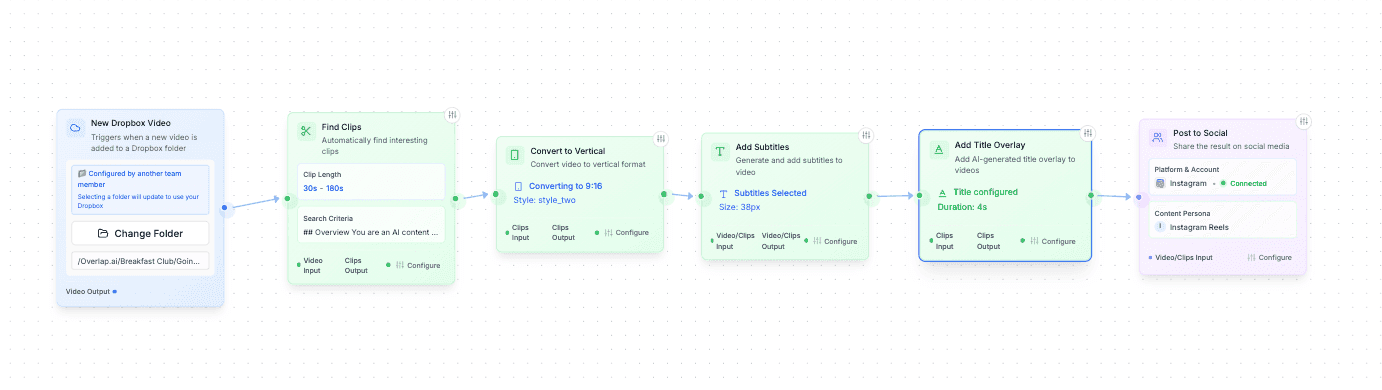
Navigate to Clipping Agents in the left sidebar and create a new agent. This opens the workflow builder, where you'll assemble your node pipeline visually.

Add a Trigger Node

The Trigger Node is always your starting point. Select the YouTube trigger to watch your connected channel. Every time a new video is published, this node fires and passes the video downstream to the rest of the workflow.

If you want to run the agent manually rather than automatically, you can skip the trigger and use the Launcher instead: click on your Clipping Agent, drop in a URL or upload a file, and hit Launch. This is useful for processing one-off videos or testing your workflow before activating it fully.

Add a Find Clips Node

Connect a Find Clips node after your trigger. This is the AI brain of the operation. It ingests the video, analyzes the transcript and content, and surfaces the most engaging moments based on the instructions you provide in your prompt.

The quality of your clips is directly determined by the quality of your prompt. The next section covers how to write one effectively.

Add Action Nodes and Create Branches

After Find Clips, add your Action Nodes. This is where you define what happens to each clip. Common actions include:

  • Add Subtitles: Auto-generates and burns in captions

  • Smart Zoom: Automatically reframes footage for vertical formats

  • Resize: Converts horizontal video to 9:16 for Shorts and Reels

  • Post to Social: Publishes the finished clip to a linked account

To create a branch, split the output of Find Clips into two separate paths. One path might handle vertical clips for TikTok, while another handles horizontal cuts for YouTube. Both run simultaneously, and both outputs are saved to your library.

Save and Activate

When your workflow is ready, you have two options:

  • Save to Draft: Saves the agent without activating the trigger. You can still run it manually via the Launcher.

  • Save and Activate: Saves the agent and turns on the Trigger Node. From this point, the workflow runs automatically whenever its conditions are met.

Important: Free plans allow up to 3 activated Clipping Agents simultaneously. Paid plans unlock additional active workflows and remove the Overlap watermark from exported clips.

Step 3: Write an Effective AI Prompt for the Find Clips Node

The prompt inside the Find Clips node is the single most important variable in your entire workflow. It tells the AI what kind of moments to look for, what to avoid, and what "good" looks like for your channel. Vague prompts produce mediocre clips. Specific, structured prompts produce clips that feel hand-selected.

Overlap recommends structuring your prompt using either Markdown or XML. Both are markup languages that LLMs were trained on, which means they parse structured formatting more reliably than plain text. Markdown is the simpler option and works well for most use cases.

Important distinction: The Find Clips prompt is only for finding moments. Do not include editing instructions here. Formatting, subtitles, and visual style are handled by the Action Nodes in your workflow.

The Five-Part Prompt Framework

Overlap's prompting guide breaks down an effective clipping prompt into five components:

1. Assign an Identity Define the AI's role and the channel's purpose. Be specific about tone and target audience.

2. Add Context Describe the show, the hosts, recurring topics, and what the audience expects. The more context the AI has, the better it can distinguish a great moment from a forgettable one.

3. Define the Goal Explicitly state what a successful clip looks like. What platforms is this for? What should a viewer feel in the first 3 seconds?

4. Provide Rules This is where you constrain the AI's behavior. List what makes a good clip, what makes a bad clip, and what to never include (ads, music segments, sponsor reads).

5. Finish with a Reminder LLMs weight the beginning and end of a prompt more heavily than the middle. Restate the goal at the end to reinforce it.

A Real-World Prompt Example

Here is a complete prompt built using this framework, using a GaryVee-style channel as the example (adapted from the Overlap docs):


Tips for Better Prompts

  • Be selective. One exceptional clip beats three mediocre ones. Tell the AI to prioritize quality over quantity.

  • Include example clips. If you have clips that performed well, describe them in the prompt with as much detail as possible: title, transcript excerpt, why it worked. The AI uses these as reference points.

  • Iterate. Run your prompt on a known video and review the output. Adjust the rules section based on what it got wrong.

Step 4: Fine-Tune Clips in Overlap Studio

Once your Clipping Agent has run (typically 5 to 10 minutes per video), your clips appear in the Episodes tab. From here, you can review what the AI produced and open any clip in Overlap Studio for fine-tuning.

Think of the workflow as getting you 90% of the way there. Studio takes you to the finish line.

Transcript-Based Editing

The most powerful feature in Studio is the ability to edit the video like a text document. The full transcript appears alongside the video, and every word is a clickable edit point. This means you can:

  • Edit: Adjust what appears in the captions without re-recording

  • Combine: Merge words to appear simultaneously in the caption display

  • Keyword: Highlight a specific word as it appears on screen

  • Remove Caption: Delete a word from the captions without cutting it from the video

  • Cut from Video: Remove a segment from the video entirely

This approach is significantly faster than traditional timeline editing. If the AI included a sentence you don't want, highlight it and delete it. No scrubbing through footage, no frame-by-frame trimming.

Visual Customization

The Editor Sidebar on the right gives you control over the visual elements of each clip:

  • Captions tab: Adjust subtitle font, size, color, and positioning

  • Title tab: Add an intro text overlay that appears at the start of the clip and fades out. This is especially useful for social thumbnails, since the intro text often becomes the visible frame when a clip is paused mid-scroll.

  • Timeline editor: Fine-tune clip boundaries at the bottom of the screen, just as you would in a standard video editor

When to Use Studio vs. Workflow Nodes

A common question is whether to handle formatting in Studio or in the workflow itself. The answer depends on consistency.

Use Case

Recommended Approach

Consistent branding across all clips

Handle in workflow Action Nodes

One-off adjustments to a specific clip

Handle in Studio

Removing a segment from a single clip

Studio (Cut from Video)

Applying Smart Zoom to all clips from a channel

Workflow Action Node

In practice, well-configured Action Nodes in your workflow should handle the bulk of formatting automatically. Studio is for exceptions and final polish.

Step 5: Set Up a Posting Persona

A Posting Persona is Overlap's version of an AI social media manager. Once configured, it automatically generates post copy for each clip you produce, tailored to the platform and the voice you define. This is what closes the loop between a finished clip and a published post.

Navigate to Posting Personas in the left sidebar and create a new persona.

What Goes Into a Persona

Think of this as a job description for your AI social media manager. The more specific you are, the more on-brand the output will be. The persona prompt should define:

  • Voice and tone: Casual and Gen-Z? Professional and enterprise? Motivational? Satirical?

  • Target platforms: TikTok, Instagram, LinkedIn, X, or a combination

  • Calls-to-action: What should the post prompt viewers to do? Follow, comment, visit a link?

  • Accounts to mention: Any handles, brands, or collaborators to tag consistently

  • Restrictions: Topics, phrases, or formats to avoid

Previewing Your Persona

Before activating, use the Preview Content button in the top right. Overlap will take your most recent clip (or a boilerplate clip if your library is empty) and generate a sample post using your persona's settings. This lets you validate the tone and adjust the prompt before it runs on real content.

Recommendation: Build your Clipping Agent first and generate a few clips before setting up your Posting Persona. That way, you can preview against your own content rather than a generic example.

How Personas Connect to Publishing

When you're ready to publish a clip, press Generate Social Posts from within Studio or from the clip view. The persona analyzes the clip and generates suggested copy for each of your linked social accounts. You can review, edit, and approve before posting, or configure the workflow to post automatically.

This is the final automation layer: video in, branded clips out, social posts written, publishing done.

Putting It All Together: A Complete Workflow Example

Here is what a fully built Clipping Agent looks like end-to-end, using a weekly podcast as the source content.

The Scenario

A marketing podcast publishes a new 60-minute episode to YouTube every Tuesday. The goal is to automatically generate 5-8 short clips per episode, formatted for both TikTok (vertical, 9:16) and YouTube Shorts (horizontal, 16:9), with subtitles and branding applied to each. Post copy should be generated automatically for each platform.

The Workflow Architecture

[YouTube Trigger]
       |
[Find Clips Node — AI Prompt]
       |
    -------
    |       |
[Branch A]  [Branch B]

[YouTube Trigger]
       |
[Find Clips Node — AI Prompt]
       |
    -------
    |       |
[Branch A]  [Branch B]

[YouTube Trigger]
       |
[Find Clips Node — AI Prompt]
       |
    -------
    |       |
[Branch A]  [Branch B]

The Node Configuration

  1. Trigger Node: YouTube channel trigger, fires on new video upload

  2. Find Clips Node: Prompt instructs the AI to find self-contained, insight-driven moments between 45 and 90 seconds long; no sponsor reads, no music segments

  3. Branch A (Vertical): Smart Zoom + Add Subtitles + Post to TikTok

  4. Branch B (Horizontal): Add Subtitles + Post to YouTube Shorts

The Result

Every Tuesday, within 10-15 minutes of the episode going live on YouTube, Overlap has:

  • Detected the new upload via the trigger

  • Scanned the full transcript and identified the best moments

  • Produced vertical clips with Smart Zoom for TikTok

  • Produced horizontal clips with subtitles for YouTube Shorts

  • Saved all clips to the library

  • Generated social post copy via the Posting Persona

The only human touch required is a final review in the Episodes tab before approving posts. For teams comfortable with full automation, even that step can be removed.

This is the core value proposition: one upload becomes a week's worth of social content, produced automatically, consistently branded, and ready to publish across every major short-form platform.

Common Issues and How to Fix Them

A few problems come up consistently when users are setting up their first Clipping Agent. Here is how to resolve them quickly.

Problem

Likely Cause

Fix

No clips appearing after running the workflow

Workflow hasn't been triggered yet

Go to Clipping Agents, select your agent, drop in a URL via the Launcher, and hit Launch

Clips are low quality or off-target

Prompt is too vague

Add specific rules to the Find Clips prompt: what makes a good clip, what to avoid, and example clip descriptions

"Upgrade your plan" error

Processing hour limit reached

Go to Profile > Billing and upgrade to a plan with higher usage

Overlap watermark on clips

Free plan active

Upgrade to a paid plan to remove the watermark

Instagram account won't link

Not a business or creator account

Convert your Instagram to a business or creator account and link it to a Facebook page first

Workflow runs but clips don't post to social

Social accounts not linked

Navigate to Linked Accounts in the sidebar and connect the relevant platforms

Getting Help

If you run into something not covered here, two resources are worth bookmarking:

Next Steps

Building your first Clipping Agent is the starting point, not the finish line. Once your baseline workflow is running, there are a few directions worth exploring:

  • Refine your prompt over time. Review the clips your agent produces each week and update the rules in your Find Clips prompt based on what's working and what isn't. The AI improves as your instructions become more specific.

  • Build multiple agents for different use cases. A podcast might need one agent for educational clips and another for highlight reels. A media brand might run separate agents for different shows. Free plans support up to 3 active agents simultaneously.

  • Explore the Nodes documentation for a full list of available Action Nodes. There are options beyond what this guide covers, and the right combination depends on your content format and target platforms.

  • Use the API. Overlap offers an API reference for teams that want to trigger workflows programmatically or integrate Overlap into an existing production pipeline.

The goal is a system that runs in the background while you focus on creating. Start with one workflow, activate it, and let it run for a few weeks before optimizing. The data from real clips performing on real platforms will tell you more than any upfront configuration decision.

Ready to build? Get started at overlap.ai or read the full documentation to go deeper on any part of the workflow covered in this guide.

Frequently Asked Questions

Does Overlap work with video sources other than YouTube?

Yes. While YouTube is the most common trigger (and the one that enables full automation), you can also run a Clipping Agent manually by dropping any video URL or uploading a file directly via the Launcher. This means content from Vimeo, Zoom recordings, local files, or any other source can be processed; it just won't trigger automatically without a YouTube connection.

How long does it take for clips to appear after the agent runs?

Typically 5 to 10 minutes per video. You'll also receive an email notification when your clips are ready. Processing time scales with video length, so a 90-minute episode will take longer than a 30-minute one.

Can I run multiple Clipping Agents at the same time?

Yes. Free plans support up to 3 activated Clipping Agents simultaneously. If you need more, upgrading your plan removes that cap. This is useful for teams managing multiple shows, channels, or content formats under one account.

What's the difference between Save to Draft and Save and Activate?

Save to Draft preserves your workflow configuration but keeps the Trigger Node off. The agent won't run automatically, but you can still launch it manually via the Launcher. Save and Activate turns on the Trigger Node, so the agent fires automatically every time its conditions are met (for example, a new YouTube upload).

Do I need to write a new prompt for every video?

No. Your prompt lives inside the Find Clips node and applies to every video that passes through that workflow. You only need to update it when you want to change what the AI looks for, which is worth doing periodically as you learn what's performing well on your channels.

Can I use Overlap for a team with multiple members?

Yes. Overlap supports team management, which lets you add members to your account. Navigate to Managing your Team in the docs for setup instructions. Multiple social accounts per platform are also supported, which is useful for agencies or media brands managing several properties.

What happens if the AI clips something I don't want published?

Nothing posts without your approval unless you've explicitly configured full automation. By default, clips land in your Episodes tab for review. From there you can open any clip in Studio, edit or delete it, and then choose when and where to publish. The automation handles production; you retain editorial control.

Is there an API for integrating Overlap into an existing workflow?

Yes. Overlap provides an API reference that lets you trigger workflows programmatically. This is useful for teams that want to integrate Overlap into a broader content production pipeline, for example triggering a Clipping Agent automatically from a podcast CMS or a custom upload script.

Recent Blog Posts

Scale your short-form content and dominate social feeds

Use AI to speed up your short-form video creation, simplify your workflow, and boost your reach across social media.

Scale your short-form content and dominate social feeds

Use AI to speed up your short-form video creation, simplify your workflow, and boost your reach across social media.

Scale your short-form content and dominate social feeds

Use AI to speed up your short-form video creation, simplify your workflow, and boost your reach across social media.