On this page
There are three ways to add captions to a video clip. A clipping or editing tool can burn them into the picture, so the words are part of the video on every platform. The platform can generate closed captions from the audio when you upload, which the viewer can switch on or off. Or you can upload a caption file such as an SRT alongside the video, where the platform accepts one. For short vertical clips, most teams burn in styled captions and leave the platform's own closed captions switched on as well. Good captions are accurate, one or two short lines at a time, placed inside the platform's safe zone, and paced so a viewer can read them at the speed the speaker talks.
The decision is not which method is best in general. It is which viewer each method serves: the person scrolling with the sound off, the person who relies on captions and needs to enlarge or translate them, and the ranking system that reads the frame. This guide covers what the platforms publish about captions, what a good caption looks like, how the step works inside an Overlap workflow, and how five other tools handle it.
This guide is published by Overlap, which offers one of the tools discussed. The tool notes below come from each vendor's own pages, checked on September 17, 2026. They are a capability inventory, not a controlled test of caption accuracy.
Three ways to add captions to a clip
1. Burn them in with a clipping tool
A clipping tool transcribes the source, cuts the clip, and draws the caption text into the frame when the clip is rendered. The captions are pixels from then on: the same words, font and position on TikTok, Reels, Shorts and everywhere else, visible to the sound-off viewer, and impossible to turn off, resize or read with a screen reader. This is the route for a styled, branded caption, and for any platform whose posting flow has no caption file upload.
2. Turn on the platform's automatic captions at upload
Each of the three large short-form platforms can generate closed captions from the audio.
TikTok announced auto captions on April 6, 2021. Creators select the option on the editing page after recording or uploading, the text is transcribed and displayed on the video, and the creator can edit that text before posting. A viewer who does not want them can turn captions off from the share panel. Source: TikTok Newsroom.
As checked on September 17, 2026, Instagram's Help Center says that with automatic closed captions on, the speech in a reel is written out as text at the bottom of the frame using speech recognition. The toggle sits under More options when you create a reel, a second toggle translates the captions, and both can be changed on a reel after it is posted. The page describes the mobile apps and says the feature is not available on computers; it describes turning captions on, off and translated, not editing the transcribed text. Source: Instagram Help Center.
YouTube's help page on automatic captioning, checked the same day, says the platform can use speech recognition to create captions, that their quality varies with pronunciation, accents, dialects and background noise, and that you should always review them and edit what was not transcribed properly. The edits happen in YouTube Studio under Subtitles. Source: YouTube Help.
Platform captions are the accessible route: the viewer controls them, and on Instagram they can be translated. They are also the least controlled one. You do not choose the font or the position, and a mistranscribed name is the platform's transcription until someone catches it.
3. Upload a caption file
Where a platform accepts a caption file, the text stays separate from the picture and the viewer's player draws it. YouTube's help page on adding subtitles, checked on September 17, 2026, gives three routes: upload a file that holds the text and its timestamps, type the text while watching and set the timing yourself, or paste a transcript and let YouTube time it. Its list of supported files names SubRip (.srt) and SubViewer (.sbv) among the basic formats and WebVTT (.vtt) and TTML among the advanced ones. Source: YouTube Help, add subtitles and supported caption files.
The Instagram and TikTok pages checked for this guide do not describe a caption file upload for a reel or a TikTok video, so on those two platforms the choice is between burned-in captions, the platform's automatic captions, or both.
| Method | What the viewer gets | Where it applies | What you give up |
|---|---|---|---|
| Burned in | Styled text everyone sees, sound on or off | Every platform, because it is part of the video | Cannot be turned off, resized or translated |
| Platform auto captions | Closed captions the viewer can toggle; translation on Instagram | TikTok, Instagram Reels and YouTube, per the pages above | Font, position and corrections belong to the platform |
| Caption file | Closed captions you timed and corrected before publishing | YouTube, and any player that accepts SRT or VTT | Not described for Reels or TikTok posting |
Doing the first and the second together covers both viewers. The burned-in captions carry the brand and survive a muted feed; the platform captions stay available to the viewer who needs them larger, translated or read aloud.
What good captions look like
The platforms publish more about where text should sit than about how it should read, and both matter. The rules below come from their own documentation where it exists and from accessibility guidance where it does not.

Pace. TikTok for Business, in creative best practices checked on September 17, 2026, recommends captions or text overlays for context and puts a number on it: “We recommend displaying 5-10 words per second when using text.” A caption that changes with the speech, three to seven words at a time, sits inside that range; a two-line caption of eight words that stays up for a second and a half does too. A full sentence held on screen for five seconds is under the range, and reads as a slide rather than a caption. Source: TikTok for Business.
One or two lines. A caption is read in the corner of the eye while the viewer watches a face. Two lines of five or six words is about what a viewer takes in without looking away from the speaker; three lines is a paragraph and the viewer has to choose between reading and watching. Set a maximum line length so a line breaks before it reaches the side margins, and a maximum line count so the block never grows.
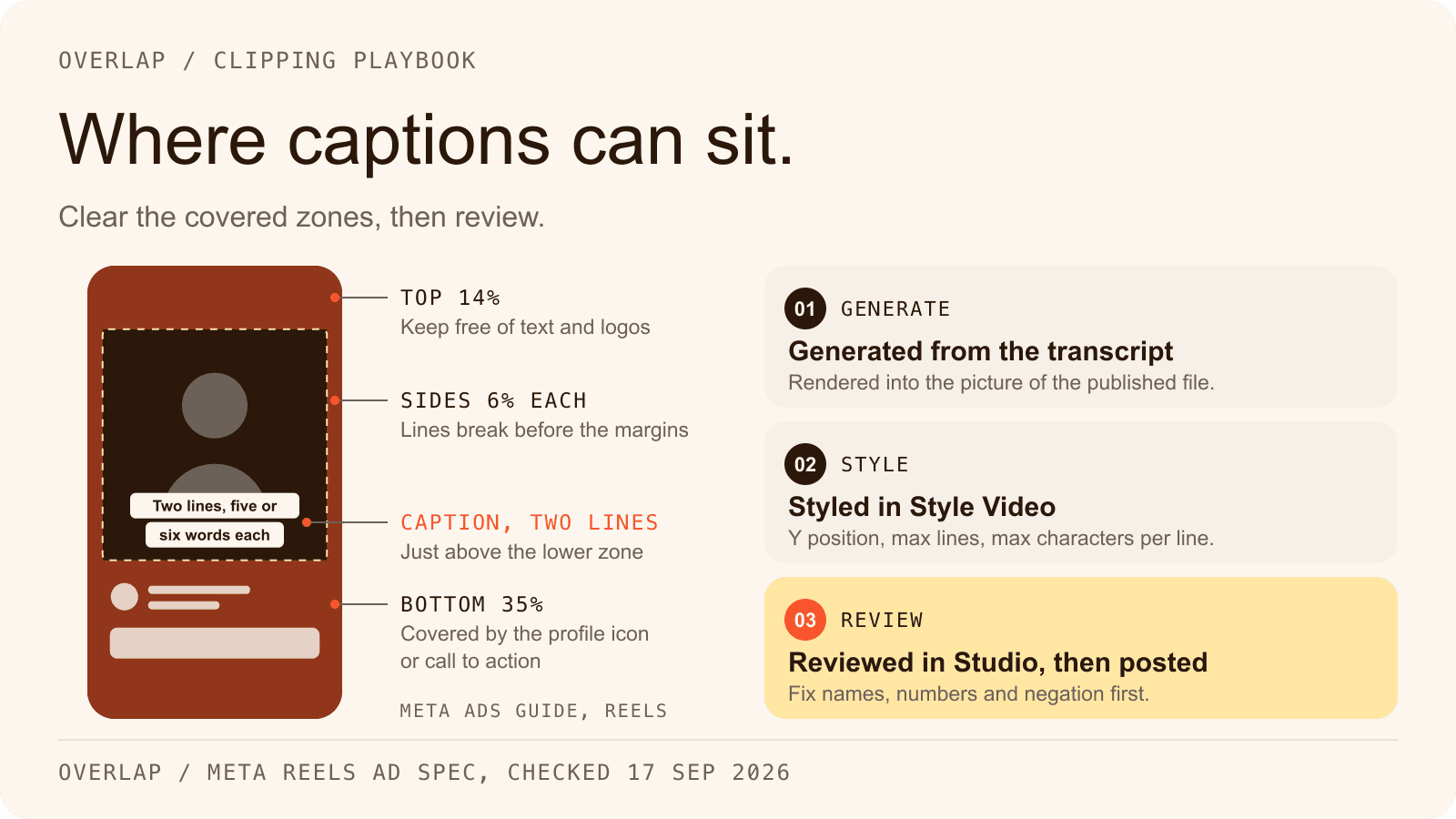
Safe zones. Meta's ad guide for Instagram Reels, checked on September 17, 2026, recommends a 9:16 asset and says to consider leaving at least 14% of the top, 35% of the bottom and 6% of each side free of text, logos and other important elements, so nothing is cropped, covered by the profile icon or call to action, or pushed against the edge of a screen taller than 9:16. On a 1080 by 1920 frame that is the top 269 pixels, the bottom 672 pixels and 65 pixels on each side, which leaves a band from about 270 to 1,248 pixels down the frame for captions. Source: Facebook Ads Guide, Instagram Reels. TikTok's in-feed ad specifications say key elements such as text and logos should sit inside the safe zone, that elements outside it may be covered or cropped, and that the zone shrinks as the post caption gets longer; TikTok publishes downloadable safe-zone templates rather than a single percentage. Source: TikTok in-feed ad specifications. YouTube's Shorts creation page gives the 1080p maximum resolution but no safe-zone figure, so check a Short in the Shorts composer before posting. Source: YouTube Help, Shorts.
Those figures are written for ads. An organic post sits under the same interface, so treat them as the floor and confirm in each app's preview. In practice the caption's resting place is the lower middle of the frame: above the bottom zone, below the speaker's face.
Contrast. WCAG's contrast minimum is written for web text, but it is the number to borrow: 4.5:1 between text and whatever is behind it, or 3:1 for large text. Footage changes behind a caption from frame to frame, so a solid or semi-opaque block behind the line, or a heavy outline, is what keeps the ratio when the speaker walks past a window. Source: W3C, Understanding 1.4.3.
Keyword emphasis. One accented word or short phrase per caption is enough: the word that carries the contrast, the negation, the name or the number. When every second word is highlighted, nothing is. Instagram's ranking explainer, published May 31, 2023 and checked on September 17, 2026, lists reels that are majority text among those it makes less visible, alongside watermarked, muted and low-resolution reels, so a caption should sit on the picture and not replace it. Source: Instagram ranking explained.
Accuracy. Names, numbers and negation are where a transcript error changes the meaning rather than the spelling. A dropped “not” reverses the point; a guest's name misspelled reads as carelessness to the people most likely to share the clip. Read the captions once against the recording before the clip goes anywhere.
Speakers. In a two-person clip, a change of colour or position when the speaker changes does the job a name label does on television, in a fraction of the space.
Add captions in an Overlap workflow, step by step
Overlap generates captions from each clip's transcript and applies the chosen caption style when the clip is rendered, so the published file carries the captions in the picture. The steps below follow the current documentation, checked on September 17, 2026.
Step 1: Build the path the clip takes
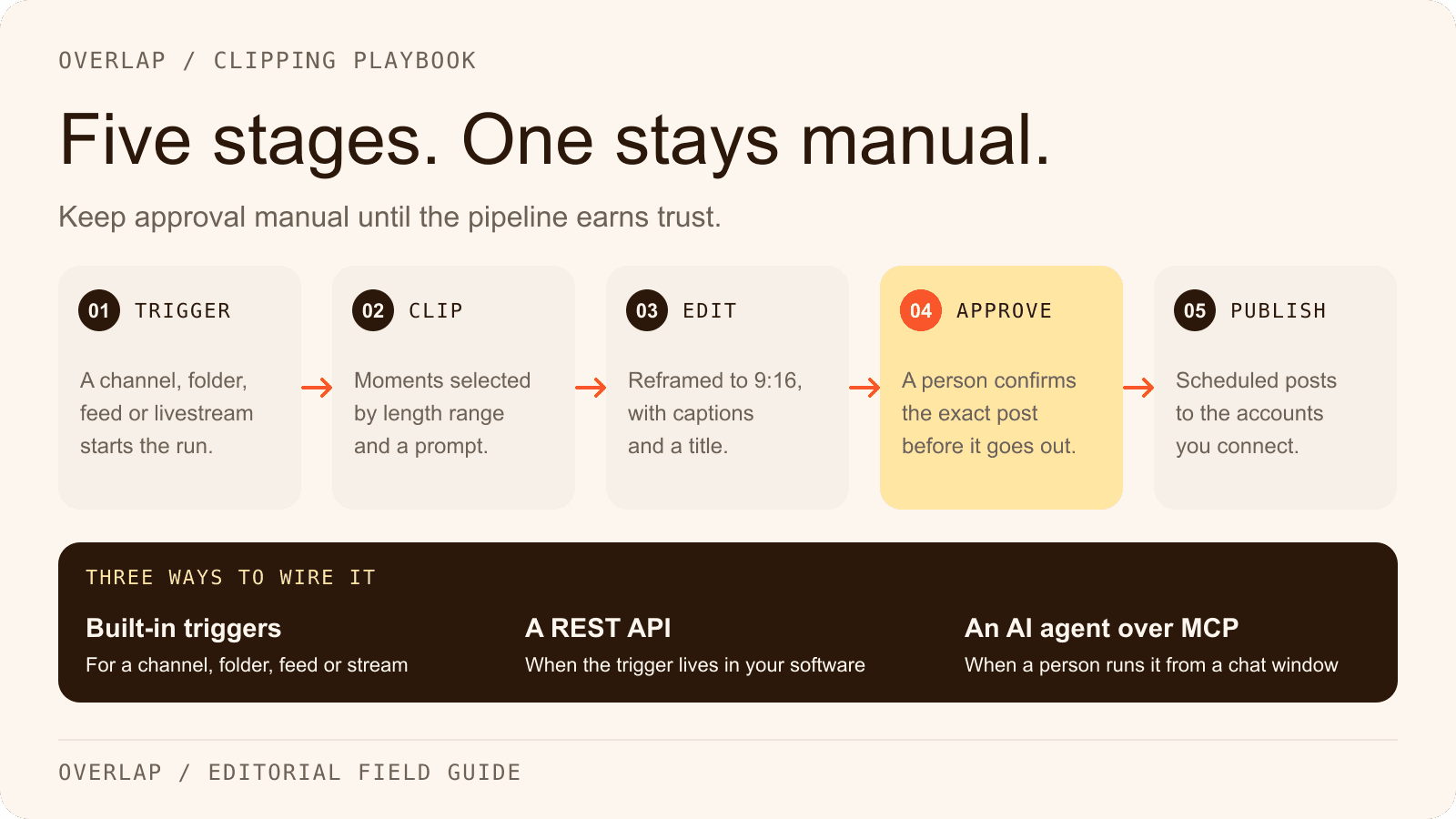
Start with a trigger such as New YouTube Video or Manual Trigger, then Find Clips to choose the moments and Convert to Vertical for a 9:16 frame. Captions come after the framing, so the subtitle area is placed against the frame the viewer will see. The captioned vertical clips workflow in the library is this sequence, built with the earlier Add Subtitles node.
Step 2: Add the subtitle layer in Style Video
In the Editing stage, add Style Video and open its Subtitles section. A Style Video node holds one subtitle layer. Choose a preset (the documentation lists Standard Loud, Plain Black, Editorial, Studio, Smooth Fade and others, plus three Cinematic styles), then customize it:
- Y Position and text alignment, so the captions sit in the band above the bottom safe zone.
- Max Chars Per Line and Max Lines, which are the one-or-two-lines rule written as settings.
- Size, font family, weight, case, letter spacing and text opacity.
- Base text colour, background colour, and a background treatment: none, one block, a block per line, or an offset highlight stripe behind the lower part of each line.
The preview updates as you work, and you can drag the subtitle bounds to move them or pull a handle to change the wrapping width or the line count. The standalone Add Subtitles node exposes the same controls; the documentation marks it deprecated but supported, so existing workflows keep running and new ones use Style Video. Source: Overlap docs, Subtitles.
Step 3: Set keyword emphasis and speaker styles
Turn on Highlight keywords and pick a keyword colour. The workflow selects a sparse set of words and short phrases from the transcript, weighting contrasts, negation, names and qualified numbers, and stores them as transcript keywords so the same marks appear in Studio. Manual highlights and exclusions take priority. The documentation notes that neither this option nor the Studio refinement measures vocal stress, so the emphasis is editorial rather than acoustic; review it in context. For a conversation, use Choose All Speakers to apply one style everywhere, or customize a speaker to give them their own.
Step 4: Keep the look consistent across workflows
Save the finished treatment with Save Template so the same caption look is available to every workflow, and keep the brand's font and palette in Brand Kits under My Brand, where fonts uploaded to Brand Assets also appear in the default font picker. The Style Video documentation does not state that the subtitle layer reads the brand kit's default font on its own, so pick the font in the subtitle typography controls, then save the template. Source: Overlap docs, Brand kits.
Step 5: Review, then post
Open a clip in Studio to check what the workflow produced. The Transcript panel's Edit Captions changes the on-screen text without treating it as a cut, the Subtitles panel adjusts the style for that clip, and the Keyword Highlights tool refines the emphasis. Fix a name or a number there; fix a recurring problem in the workflow instead. Then let Post to Social publish to the connected accounts, with Post Approval on if a person should sign off each captioned clip first. The integrations page lists the sources and the nine destinations, and the automation page covers running the whole path without a hand on it. Source: Overlap docs, Studio.
How other tools handle captions
OpusClip's pricing page lists animated caption templates on every plan, with a watermark on the free one, and its Starter plan bullet says AI animated captions in 20+ languages; the homepage claims 97% accuracy, and speaker-based caption colours are a Business-plan row. Source: OpusClip pricing, checked September 17, 2026.
Descript builds a captions layer from the transcript with preset styles, active-word highlighting and per-speaker layers, exports subtitle files as .srt and .vtt, and lists 25 transcription languages on its pricing page (its help centre says 26) and 61 languages for caption translation. Source: Descript help, captions and subtitle export, checked September 17, 2026.
Klap's clipping tool page claims 98% accurate captions in 52 languages with animated keyword highlights, and says its brand kit sets the caption font; its API page says over 100 languages, which its own homepage list does not match. Source: Klap, checked September 17, 2026.
Submagic's homepage claims caption styles in 123 languages at 99% accuracy; its help centre article on accuracy, last updated in 2024, says its algorithms average 98.8% under optimal conditions, and its own pages give language counts from 48+ to 123. Source: Submagic help centre, checked September 17, 2026.
Vizard lists AI captions with emoji on its homepage and auto subtitling on all three plans; its help centre names 40 transcription languages (updated February 4, 2026) and 128 for subtitle translation, and the editor downloads subtitles as .srt and .txt, with SRT on paid plans. Source: Vizard help centre and pricing, checked September 17, 2026.
Every accuracy figure above is the vendor's own claim, measured on its own material. None of them, Overlap included, publishes a benchmark you could reproduce, and none can be ranked against another on those numbers alone.
| Tool | Automatic captions | Styling and emphasis | Languages (vendor figure) | Caption file export |
|---|---|---|---|---|
| Overlap | Yes, from the clip transcript, applied at render | Presets, position, line limits, typography, per-speaker styles, keyword highlights | Not published in the docs checked | Not documented |
| OpusClip | Yes, animated templates on all plans | Templates, keyword highlighter, speaker colours on Business | 20+ | Not stated on the pages checked |
| Descript | Yes, a captions layer from the transcript | Presets, active-word highlight, per-speaker layers | 25 transcription, 61 caption translation | SRT and VTT |
| Klap | Yes | Animated keyword highlights, brand kit font | 52 on its homepage, 100+ on its API page | Not stated on the pages checked |
| Submagic | Yes | Caption templates, standard or premium by plan | 123 on its homepage, 100+ elsewhere | Not stated on the pages checked |
| Vizard | Yes, on all plans | AI captions with emoji | 40 transcription, 128 translation | SRT and TXT in the editor |
Every row was checked on September 17, 2026 against the vendor pages linked above. “Not stated” means the pages checked did not say either way. For a fuller side by side, see Overlap vs OpusClip and Overlap vs Descript.
Captions are an accessibility feature first
WCAG 2.1's success criterion 1.2.2 requires captions for all prerecorded audio in synchronized media, and its guidance explains that captions exist so people who are deaf or hard of hearing can follow the content, which means the dialogue, who is speaking, and meaningful sounds, not the dialogue alone. Source: W3C, Understanding 1.2.2. The W3C's media accessibility guidance adds a distinction this guide has blurred on purpose: captions are in the language spoken, subtitles are a translation, and automatically generated captions do not meet accessibility requirements unless they are confirmed to be fully accurate. Source: W3C, Captions/Subtitles.
Two consequences follow. An unreviewed automatic caption is a convenience for the sound-off viewer, not an accommodation for the deaf viewer; the review pass is what turns it into one. And burned-in captions alone are not enough, because they cannot be enlarged, re-coloured, translated or read by assistive technology. Leave the platform's closed captions on as well, so the viewer who needs them has a version they control. The burned-in track carries the style; the closed-caption track carries the choice.
Where Overlap fits
Overlap is an AI video clipping platform. Teams run it themselves, or Overlap's team runs managed clipping campaigns for them on accounts the customer owns, priced per delivered view. On captions specifically, the documentation establishes the following: captions are generated from the transcript; the Subtitles section of Style Video, or the older Add Subtitles node, sets the preset, position, line limits, typography, colours, keyword highlights and per-speaker styles; the style is stored on the clip and applied by the renderer; Studio edits the text and the style per clip; and Post to Social publishes to TikTok, Instagram, YouTube including Shorts, X, LinkedIn, Facebook, Threads, Snapchat and Bluesky, with scheduling and approval.
It does not establish four things this guide has touched. It does not describe exporting a caption file such as an SRT from a clip, so a destination that wants a separate file is a step outside the documented workflow. It does not publish a count of transcription languages. It does not state that the subtitle layer picks up the brand kit's default font by itself. And it does not say whether Post to Social switches a platform's own closed captions on or off at upload, so set that toggle in each app or accept the platform's default. For the self-serve platform's plans, see the pricing page; the managed clipping campaigns offer is priced on delivered views.
Check five things before the clip goes out
- Names, numbers and every “not” match the recording.
- No caption sits in the top 14% or bottom 35% of the frame, or within 6% of either side.
- No caption runs past two lines, and none holds a full sentence for five seconds.
- The text keeps its contrast when the background changes, or a block or outline is on.
- The platform's closed captions are switched on, so the viewer who needs a version they control has one.
Start with one clip and a saved template. Set the caption look once in the AI video clipper, review the first few clips in Studio, and let the workflow carry the treatment from there. For the rest of the pipeline the captions sit inside, use the clipping workflow guide; for what automated clipping still does badly, read the limits of AI clipping for podcasters.
Frequently Asked Questions
Should captions be burned in or uploaded as a caption file?
For a short vertical clip, burn them in, so the words survive a muted feed and look the same on every platform. Where the destination accepts a caption file, such as YouTube, upload one as well, because a closed caption can be enlarged, translated or turned off and a burned-in one cannot. Doing both serves the sound-off viewer and the viewer who depends on captions.
How many words per second should captions display?
TikTok for Business recommends displaying 5 to 10 words per second when a video uses on-screen text. A caption that changes with the speech, a few words at a time, sits inside that range. A whole sentence held on screen for several seconds reads as a slide rather than a caption.
Where should captions sit on a vertical video?
Meta's ad guide for Instagram Reels recommends keeping at least the top 14 percent, the bottom 35 percent and 6 percent of each side free of text and logos, because the interface and the profile controls cover those areas. On a 1080 by 1920 frame that leaves a band from about 270 to 1,248 pixels down the frame. The lower middle of that band, below the face and above the bottom zone, is the usual resting place.
Are automatic captions accurate enough to publish without a review?
No. YouTube's own help page says the quality of its automatic captions varies and that they should always be reviewed and corrected, and the W3C says automatically generated captions do not meet accessibility requirements unless they are confirmed to be fully accurate. Names, numbers and negation are the words to check first, because an error there changes the meaning rather than the spelling.
How does Overlap add captions to a clip?
Overlap generates captions from each clip's transcript. In a workflow, the Subtitles section of the Style Video node sets the preset, position, line limits, typography, colours, keyword highlights and per-speaker styling, and the chosen style is applied when the clip is rendered. Names and numbers can be corrected in Studio before Post to Social publishes the clip.
Do burned-in captions satisfy accessibility requirements on their own?
Not by themselves. WCAG requires captions for prerecorded audio so that people who are deaf or hard of hearing can follow the content, and a burned-in caption cannot be enlarged, re-coloured, translated or read by assistive technology. Keep the platform's closed captions switched on alongside the burned-in text, and make sure the text itself has been checked against the recording.